VERTES Academy

Every tab, every button — explained.

VERTES is a full studio, but nothing here is complicated. This is a plain-English tour of each tab and what every control actually does. Read it once and you'll know the whole app.

1

Create Shorts

The core: drop footage, say what you want, get finished vertical Shorts.
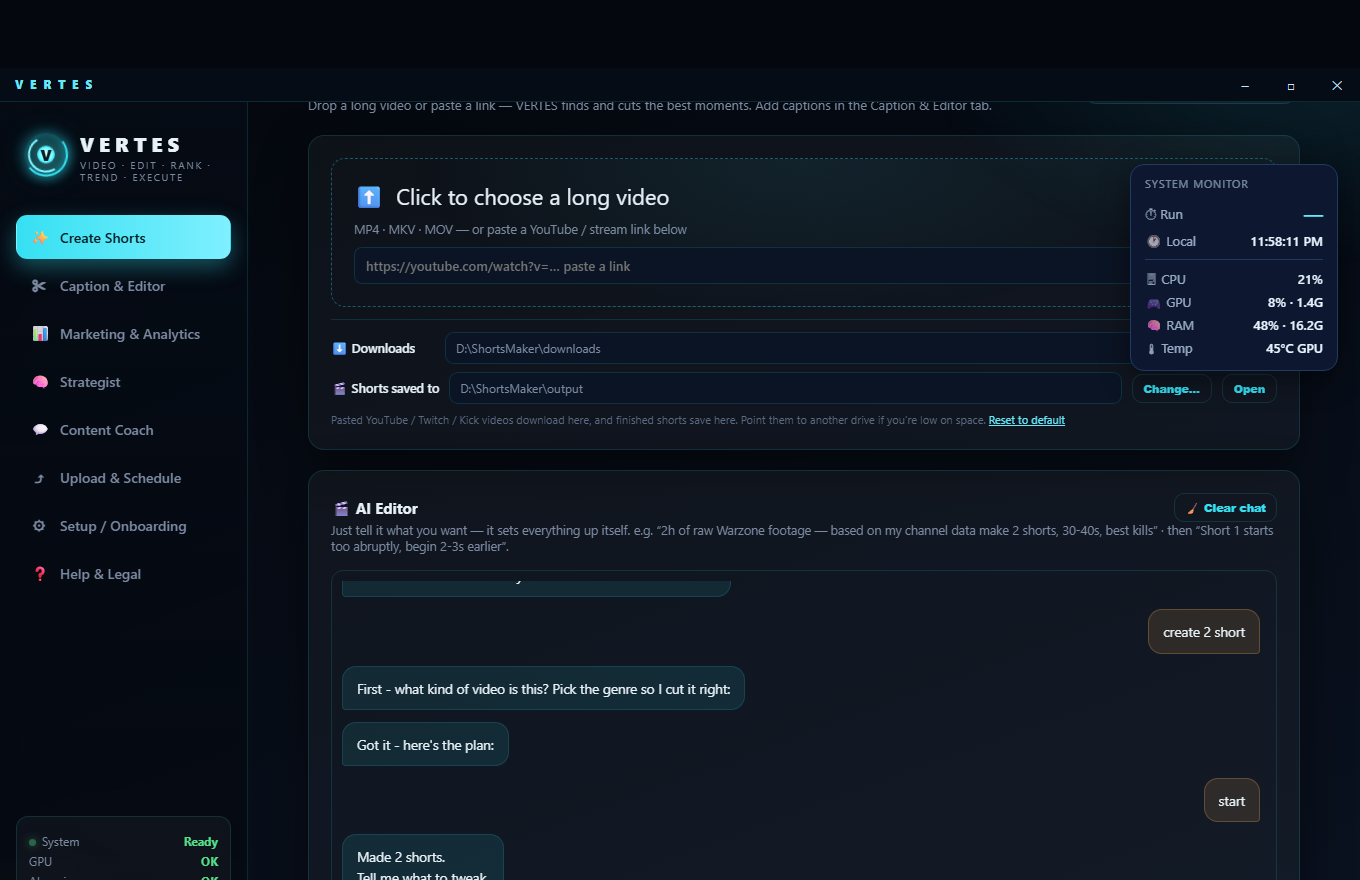
Create Shorts tab
  • 📥Pick footagechoose a video file from your PC or paste a link. Any length: even a 6-hour stream.
  • 🎮Game / genretells VERTES what to look for. If it's unsure, it asks a quick clarifying question so it hunts the right moments.
  • #️⃣How many Shorts & lengthe.g. 3 shorts, 30–40s each. No caps — make as many as you like.
  • 🙂Facecamif you stream with a camera, VERTES finds it and places it as a split or a circle at the top.
  • 🏷️Channel brandingdrop your social icons (Twitch/YouTube/TikTok/X…) plus your handle onto every clip, in the corner you choose.
  • 🎬Outro cardoptional end card with your channel name.
  • 📊System monitorlive CPU/GPU/RAM/temperature + a timer, so you can see it working.
  • ▶️StartVERTES downloads (if a link), transcribes, finds the best moments, cuts, crops vertical and ranks them. Clips land in your Shorts folder.
Good to know: Create makes clean, fast clips. Captions are added on demand in the next tab, so every caption is perfectly synced to that exact clip.
2

Caption & Editor

Fine-tune a clip and add karaoke-style captions — one clip, or many at once.

Where it lives: the ✂ Caption & Editor tab in the left menu. Pick a clip from your gallery, or tick several to caption in a batch.
  • ✂️Cut (timeline)drag the start/end handles, or type an exact time, to trim the clip before captioning.
  • 📍Caption positiontop, middle or bottom (top clears YouTube's UI).
  • 🔤Fontany font installed on your Windows.
  • 🌍Caption languagekeep the original speech, or "English (translate)" to auto-translate any spoken language into English captions.
  • 🖼️Framingkeep as-is, or a streamer facecam split (choose the cam corner, shape — bar/circle/square — and where to place it).
  • 🔡Bigger spoken wordpops the currently-spoken word larger for that trending karaoke look.
  • 🎨Caption style14 ready-made colour styles; the base colour is the word, the glow is the spoken (karaoke) word.
  • 📚Caption selectedcaption several shorts at once. Optional: delete the original after captioning (goes to Recycle Bin).
3

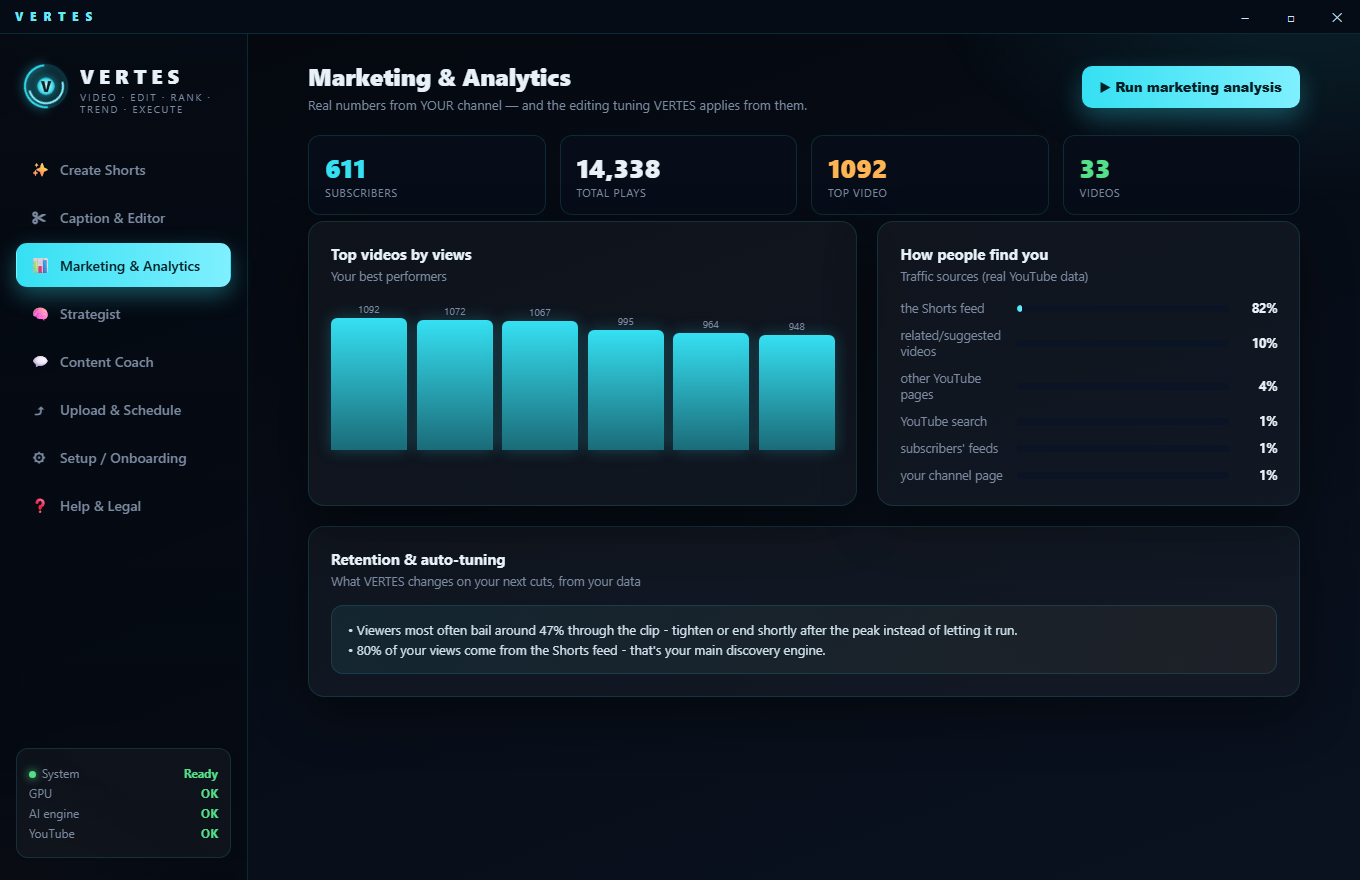
Marketing & Analytics

Real numbers from YOUR channel — and the tuning VERTES applies from them.

Marketing & Analytics tab
  • 📈Real KPIsviews, watch time, retention (average view %) and subscribers, pulled straight from YouTube Analytics.
  • 🚦Traffic sourceswhere views come from, so you know what's actually working.
  • 🧠Channel DNAVERTES learns what holds YOUR audience (openings, lengths, moment types) and feeds it back into the next cuts.
  • 🔄Run learnrefresh the learning from your latest real analytics whenever you want.
Why it matters: this is the loop nobody else has — publish → measure → the next batch is tuned automatically.
4

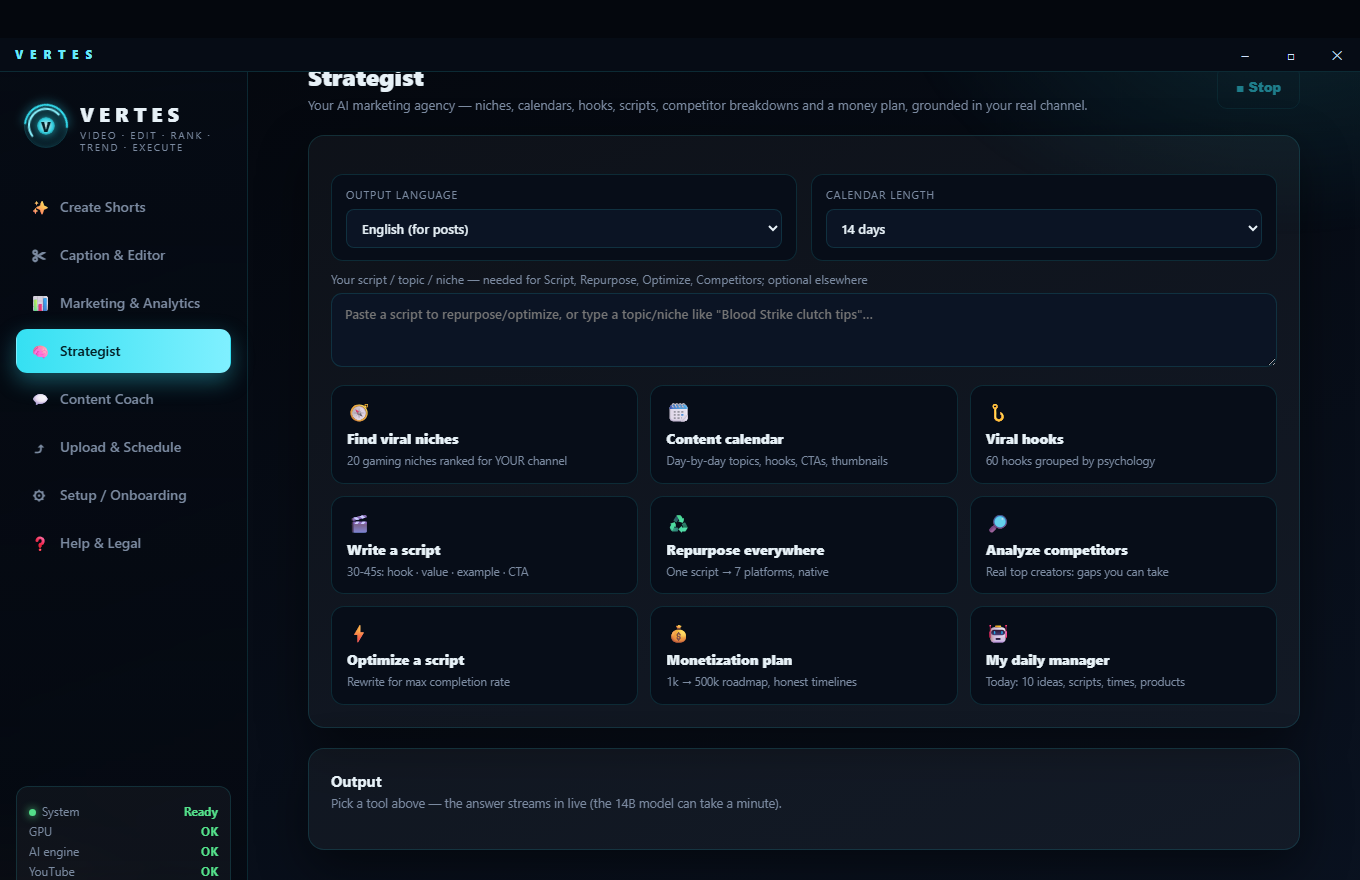
Strategist

Nine marketing tools, all anchored to YOUR games and channel.

Strategist tab
  • 🧭Find viral niches20 gaming niches ranked for your channel.
  • 🗓️Content calendarday-by-day topics, hooks, CTAs and thumbnails.
  • 🪝Viral hooks60 hooks grouped by psychology.
  • 🎬Write a scripta 30–45s structure: hook · value · example · CTA.
  • ♻️Repurpose everywhereone script → native posts for every platform.
  • 🔎Analyze competitorsreal top creators (live YouTube data) and the gaps you can take.
  • Optimize a scriptrewrite for maximum completion rate.
  • 💰Monetization plana 1k → 500k roadmap with honest timelines.
  • 🤖My daily managertoday's 10 ideas, scripts, best times and products.
5

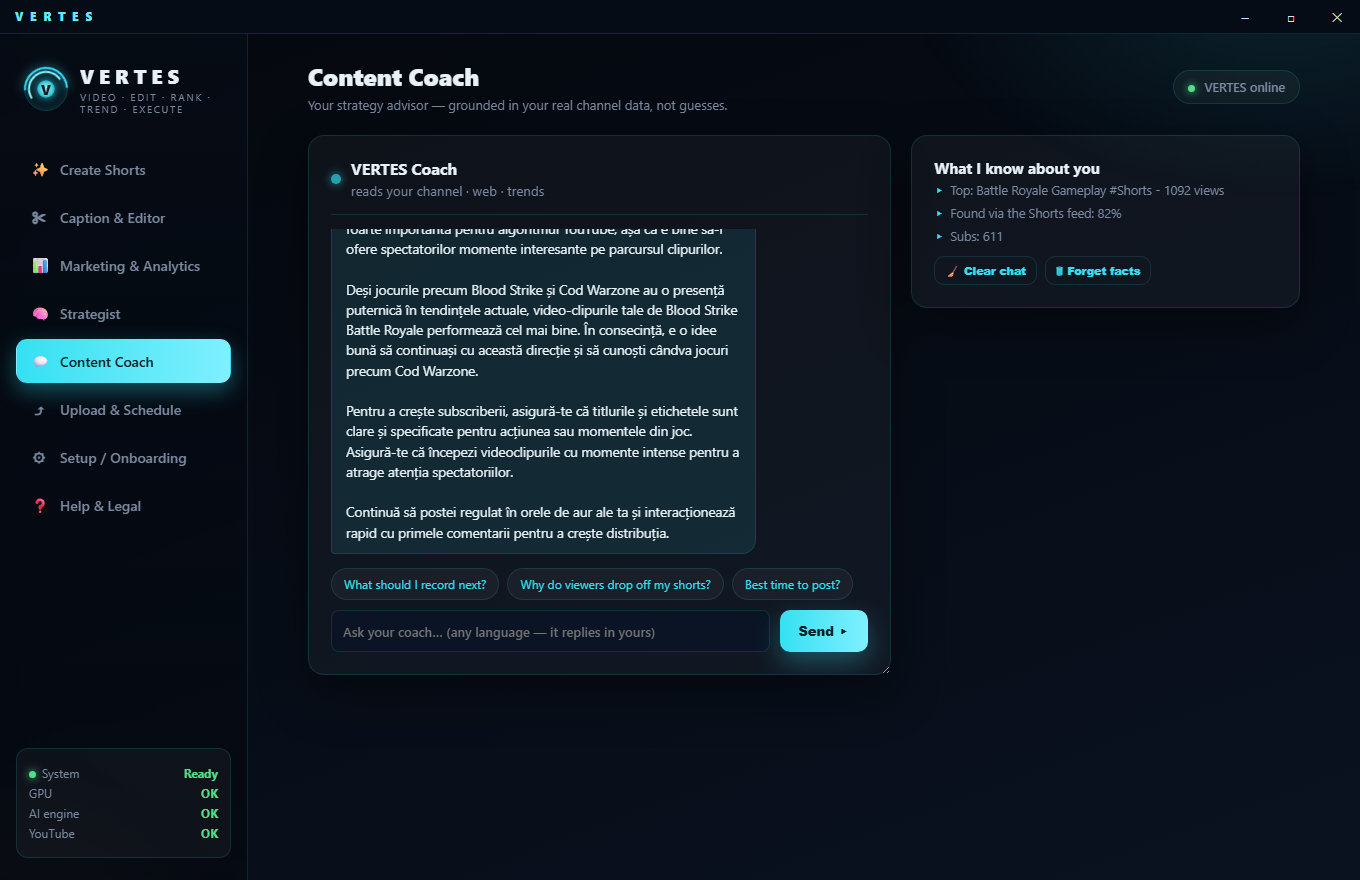
Content Coach

Ask anything — strategy advice grounded in real data, not guesses.

Content Coach tab
  • 💬Chatask about titles, ideas, what to post, why a clip flopped — in any language.
  • 🌐Grounded answersthe coach uses live web research plus your real channel data, so advice is specific to you.
  • 🧩Knows your nicheit's pinned to your actual games and what already performs for you.
6

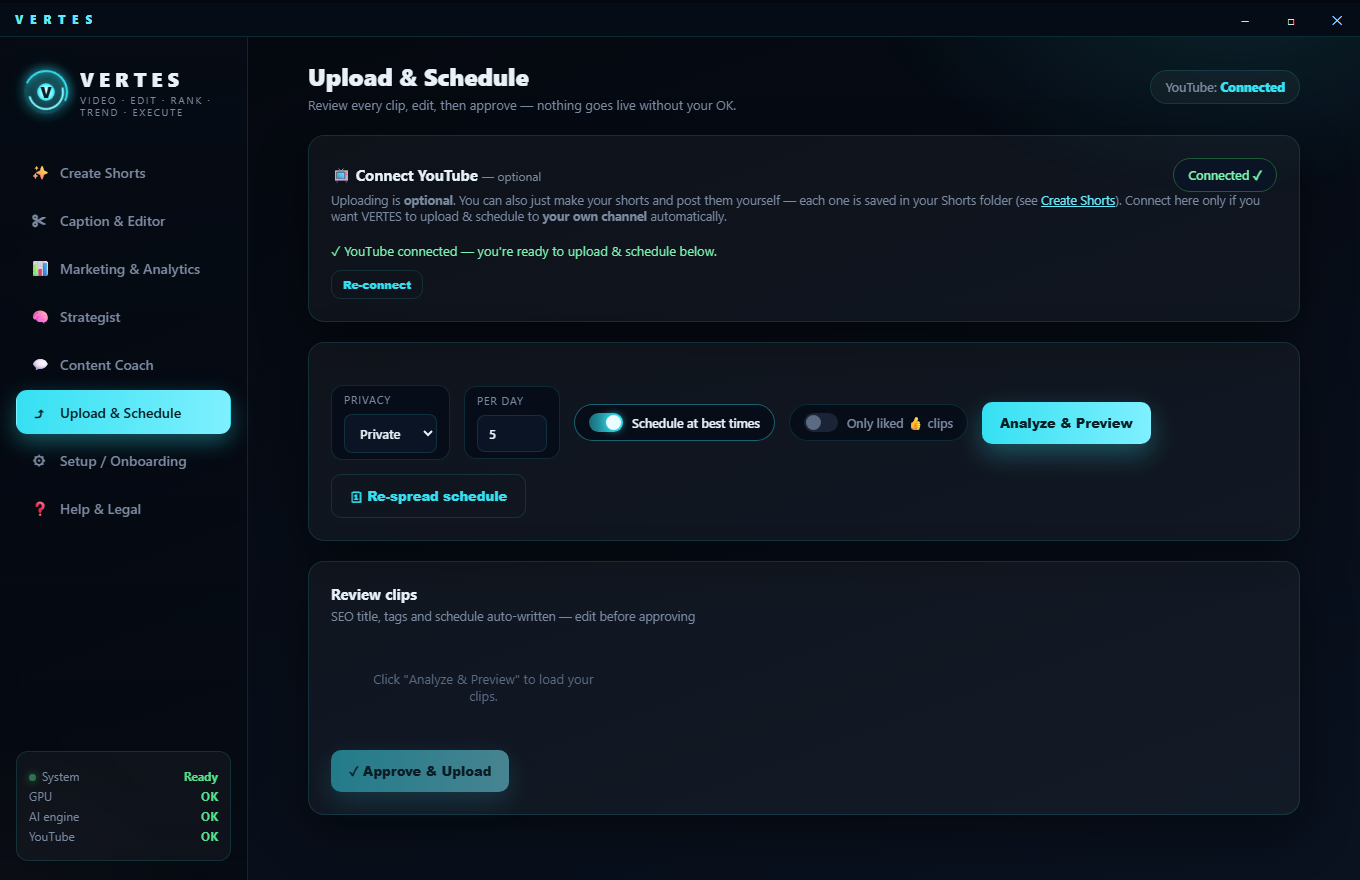
Upload & Schedule

Optional auto-upload to your own channel — SEO written, best times picked.

Upload & Schedule tab
  • 🔌Connect wizarda step-by-step guide to link your own YouTube (your own quota, no gatekeeping). Upload is optional — you can always post clips yourself.
  • ✍️SEO titles & tagswritten for each clip; you review and approve before anything goes live.
  • Best posting timesschedules your Shorts into good slots automatically.
  • 🔧Optimize published videosscans your live Shorts, flags under-performers vs your game's benchmark, and rewrites title/description/tags (grounded in real viral titles) — then updates them on YouTube with one click.
Honest note: editing a live video updates its search/suggested reach over time — it does not "re-launch" it. VERTES tells you the truth about what each fix can and can't do.
7

Setup / Onboarding

One-time setup: the AI engine, your licence, fonts.

Where it lives: the ⚙ Setup / Onboarding tab. You'll visit it once when you first install.
  • 🔑Activate this devicepaste your licence key (from your purchase email) to unlock VERTES on this PC.
  • 🧠Install the AI engineone click installs the free local AI (Ollama + models). The smart features (editor, coach, titles) use it; video cutting works even without it.
  • Or use Claudepaste your own Claude API key for the premium brain — pennies per session, billed to you, your data.
  • 📁Folders & fontschoose where clips are saved and see which fonts are available for captions.
8

Help & Legal

Get unstuck fast, and everything official.

Where it lives: the ❓ Help & Legal tab, plus quick links at the bottom of the menu.
  • FAQ + AI helpcommon answers, plus an assistant that walks you through anything step by step.
  • 🎖️Your membershipyour rank, activation status and device.
  • 📄EULA & licencesthe terms and the open-source components VERTES builds on.
  • 🔗Quick linksVisit website, join the Discord community, and leave feedback — all from the menu.